
The best CS2 settings are the ones that keep your hardest fights readable and avoid long frames. Start at your display's native resolution, write down your current settings and find out what actually goes wrong. Dropping everything to low at once hides whether the cause was rendering, background software or the network.
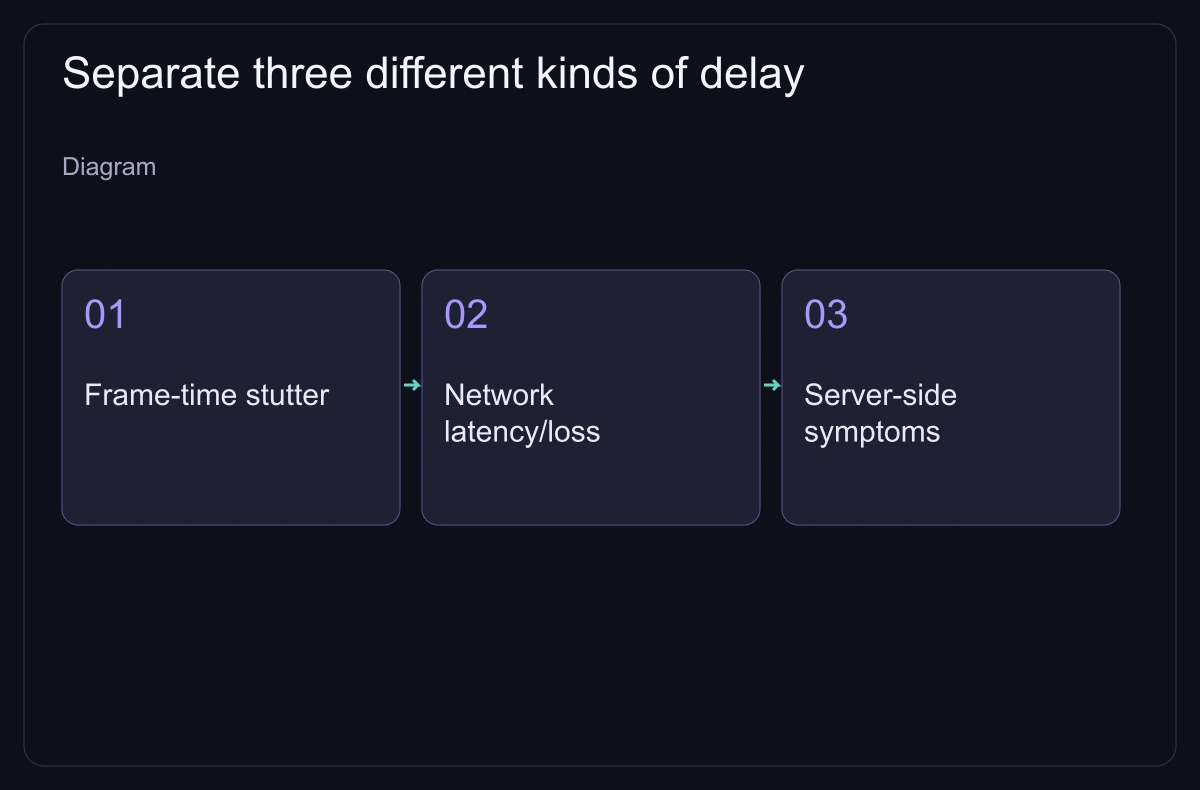
First find out what kind of delay you have
Turn on the telemetry HUD under Settings → Game → Telemetry, as Valve's telemetry guide describes. The number on the left is the slowest recent frame time; the one on the right is your average FPS. Valve suggests setting the frame-time warning just above your usual maximum: if a hitch turns it red, the problem is your PC, not the network. Repeat the symptom in a local practice session and online, and note which number changes at that moment.
Frame-time arithmetic: a steady 144 FPS is 1,000 / 144 = 6.94 ms per frame; 240 FPS is 4.17 ms. A single 30 ms frame takes far longer than either, so a high average can't show that every fight was smooth. Equally, one slow frame doesn't tell you the average FPS of the session.
Run your monitor at its highest refresh rate
Valve's CS2 video settings recommendations say to play at the highest refresh rate your display supports and to check it in the system settings: in windowed and fullscreen windowed modes, Windows sets the rate (Advanced display settings on Windows 10). A game drawing 240 FPS doesn't move a monitor out of a 60 Hz mode.
The same page recommends NVIDIA G-Sync or AMD FreeSync where available. With G-Sync on, Valve recommends also enabling V-Sync and NVIDIA Reflex: together they cap the frame rate slightly below the refresh rate, which Valve calls usually the smoothest-looking and lowest-latency combination. CS2 shows a popup offering to apply this when it detects the setup but finds it unused.
Use three controlled comparisons
- Resolution: compare native resolution with a lower one at the same aspect ratio, everything else fixed. A repeatable gain means pixel work matters; little change means you should look for other limits.
- Detail: go back to your chosen resolution and lower one expensive option at a time in Video → Advanced Video. Test anti-aliasing, effects and detail separately, and keep a change only if the gain survives a second run and the visual cost is acceptable.
- Background load: repeat the same scene with unneeded recording, overlays and apps closed. If this matters more than resolution, fix the workload instead of lowering image quality again.
Valve's general performance guide backs closing background apps, freeing memory and updating GPU, CPU and audio drivers, but many of its examples are for older Source games. It's no reason to copy CS:GO launch options into CS2. Save your current launch options, remove optional tweaks for a baseline, and put back only those whose purpose you understand.
Spend image quality where it helps a decision
| Control | First comparison | Reason to stop lowering |
|---|---|---|
| Resolution and scaling | Native versus lower, same aspect ratio. | A distant silhouette becomes harder to identify. |
| Anti-aliasing | Current level versus a lower level or off. | Edge shimmer distracts while moving. |
| Shadows | The same player shadow at the same angle. | A useful cue disappears; restore the setting that shows it. |
| Effects and texture detail | A busy utility scene and a repeated route. | No repeatable gain, or important surfaces turn unclear. |
| Brightness and contrast | Check both bright and dark positions. | Washed-out highlights or crushed shadows hide information. |
"All low" can hide useful cues, so check each cue in game. Test stretched 4:3 separately, after the performance comparison: changing aspect ratio, resolution and sensitivity together makes the result impossible to read.
Low latency and maximum FPS are different goals
NVIDIA's CS2 instructions place Reflex under Video → Advanced Video. NVIDIA says Enabled + Boost can cut latency further at the cost of extra power and a slightly lower frame rate, and recommends it in CS2 only for players who put latency ahead of frame rate.
AMD lists Anti-Lag 2 as an in-game technology available in CS2 on supported hardware. Use the in-game option rather than an old driver tweak. Neither setting shortens the distance to the game server.
For a frame cap without G-Sync, compare consistency, responsiveness and tearing on your own display, and keep the game and driver settings from contradicting each other. A smooth-looking cap can cost responsiveness; an uncapped run can still be uneven.
Keep a change only if it repeats
Use the same map, route, utility and test length. Run the original settings, the changed settings, then the original again (A–B–A). Warm up first and note any recording overhead. Log long-frame events and whether you could read the fight. If the two original runs differ a lot, sort out that variation before crediting the change.
If performance drops only after an update, save the scene, game build, driver version and settings for a bug report. Once you have a stable, readable setup, stop changing several things between matches.