
Use one fixed mouse profile and pick sensitivity by two tasks: accurate small corrections and a comfortable large turn. A pro's eDPI can't answer either for your pad, posture and mouse. If your aim suddenly feels different, check the mouse profile, the DPI button, the connection and your frame times before you touch sensitivity; changing sensitivity to hide a fault spoils the next comparison.
eDPI: the calculation and its limits
eDPI = mouse DPI × in-game sensitivity. 400 DPI × 2.0, 800 DPI × 1.0 and 1,600 DPI × 0.5 all give 800 eDPI. To keep 800 DPI × 1.2 (960 eDPI) after switching to 1,600 DPI, set (800 × 1.2) / 1,600 = 0.6.
eDPI compares setups within one game and one input chain. It says nothing about sensor accuracy, total system latency or how a setting carries over to another game, and scoped sensitivity needs its own check. Write down DPI and sensitivity separately, not just their product.
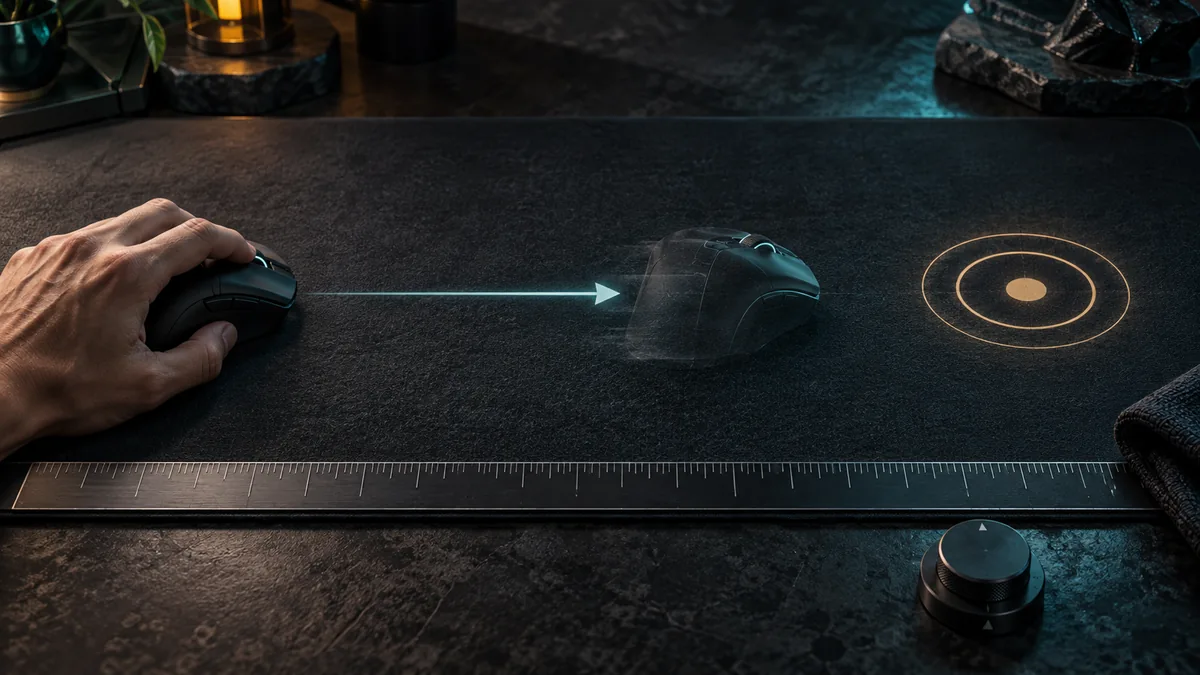
To measure your turn, face a fixed landmark in a local session, mark where the mouse starts and measure the distance for one full turn back to the landmark. Repeat a few times in each direction without lifting the mouse. On a short pad, measure a half turn and double it. Keep the method and the landmark the same every time; small differences between runs are normal.
Raw input is not the desktop pointer
Microsoft's raw-input documentation describes device data delivered straight to an application, and its mouse reference separates this from legacy pointer messages, which the Windows pointer-speed setting affects. That is why desktop cursor speed is no way to measure in-game sensitivity.
Set sensitivity in CS2's own settings, and DPI and polling rate in the mouse maker's software. For a clean baseline, leave the driver's optional acceleration or smoothing off and write down anything you change.
If you suspect acceleration or a profile switch, move the same physical distance slowly and then quickly in a local session, without lifting the mouse or hitting the edge of the pad. Different turn amounts point to a setting or a measuring error worth checking; repeat before you draw a conclusion.
A short selection test instead of a universal range
- Large turn. From a natural centred position, turn to a target behind you. If you have to strain or keep running off the pad, the setting or the space doesn't fit the task.
- Small correction. Flick between two nearby fixed targets at a steady distance. Count overshoots and undershoots, not just hits.
- One nearby alternative. If you keep overshooting, try a small reduction; if movement keeps falling short, try a small increase. Keep DPI, resolution, crosshair and weapon fixed.
- Original, alternative, original. Warm up, then run the same task length for each. A difference that vanishes when you return to the original was probably learning or fatigue.
A 10% step from 1.0 gives 0.9 or 1.1: a convenient test step, not an ideal interval for everyone. Once a setting handles both tasks, keep it for several practice sessions before you judge it again. One lost fight is no reason to change sensitivity; crosshair placement, movement and timing can explain it.
Polling rate is a report interval, not total latency
The report interval is 1,000 / polling rate in Hz: 125 Hz gives 8 ms, 500 Hz 2 ms, 1,000 Hz 1 ms and 4,000 Hz 0.25 ms. These are calculated intervals, not measured click-to-screen delay, which also includes sensing, transfer, game processing, rendering and the display.
If your mouse offers several rates, compare a stable baseline with a higher rate while moving continuously in the same busy scene. Watch frame times as well as aim comfort, and keep the higher rate only if it runs reliably on your PC; the biggest number on the list is not always the best choice. Test wireless connection or receiver placement separately from sensitivity.
After a resolution change, check the crosshair first
Valve's 22 September 2026 update added a Crosshair/Scopes settings tab with updated crosshair options and made crosshairs resolution independent. The next day's notes explain that thickness and length are now set in pixels and rescale automatically when the display resolution changes. An old size-and-gap recipe may draw a different crosshair now, so record yours and check it after any resolution change.
Stretched images change how motion looks. Don't judge sensitivity by how fast a model crosses the screen; repeat the physical turn measurement instead. Keep a reproducible setup that fits your turns and corrections, then spend practice time on crosshair placement and timing.