
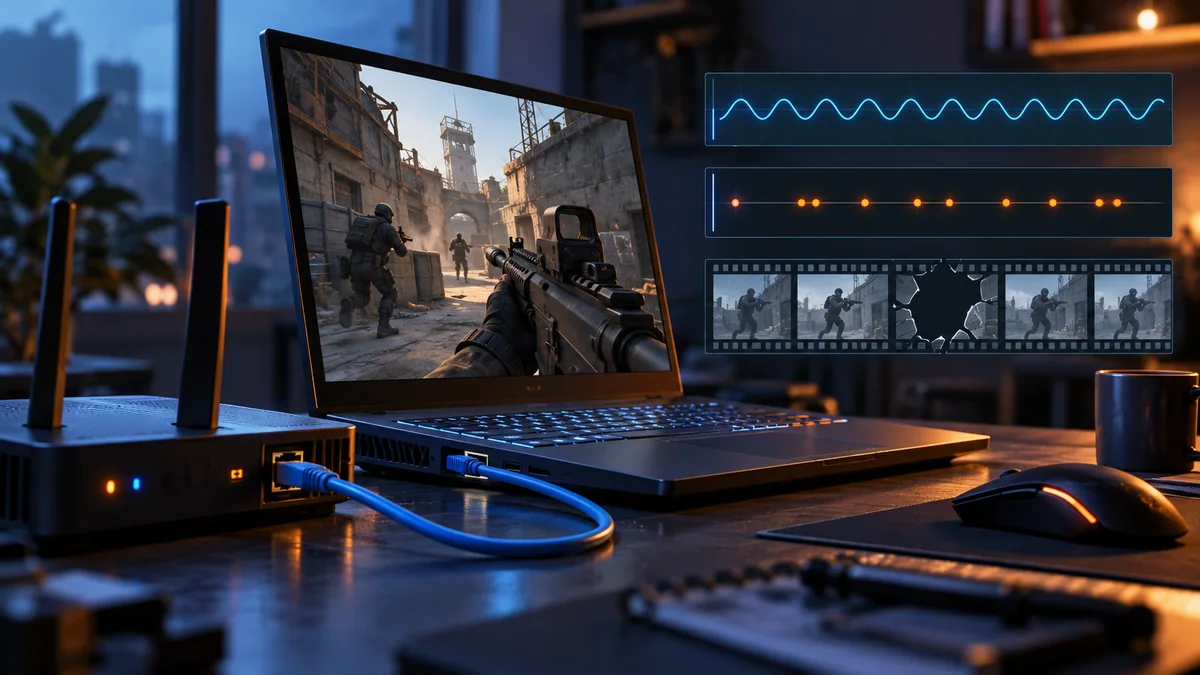
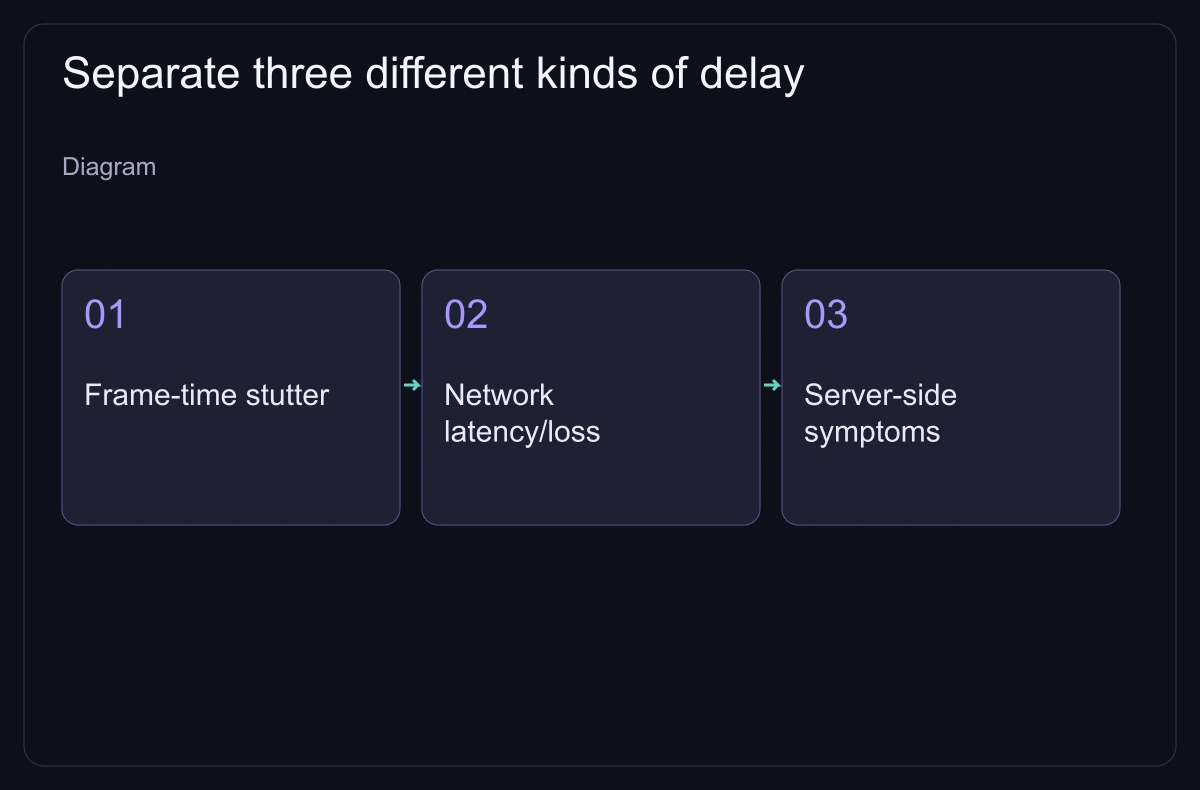
To fix CS2 lag, first find where the time is lost: in your PC, on your connection or on the route to one server. High average ping, occasional rubber-banding and local frame freezes are different problems. They can occur together, but no single "network optimisation" command block can diagnose them. Record one reproducible incident and change one condition at a time.
Read the HUD at the moment it happens
Valve's telemetry guide covers Settings → Game → Telemetry. Ping is network round-trip time. The up and down network-problem numbers are tick miss rates: how often the data for a tick arrives too late. CS2 runs at 64 ticks per second. The miss rate counts late data, not raw packet loss, and Valve notes that 0% doesn't mean a perfect connection; the detailed view shows loss and jitter separately.
Watch the frame-time number when the game freezes. If the same freeze happens in local practice with no network match, start with the FPS diagnosis guide. If frames stay steady while movement corrects and the network numbers rise, test the connection first.
A steady 70 ms and a usual 25 ms with bursts to 150 ms need different fixes: the first points to a long route, the second to variation or congestion. A speed-test download figure can't tell them apart.
Run a small matrix before blaming your ISP
| Comparison | Keep fixed | What a difference suggests |
|---|---|---|
| Wi-Fi versus Ethernet | Same PC, server and similar time. | The wireless link matters if Ethernet removes the symptom every time. |
| Idle network versus normal load | Same connection and server. | Uploads, downloads or household use may be queueing traffic if spikes appear only under load. |
| One server versus another | Similar region, connection and workload. | A route or server problem is more likely if only one destination suffers. |
| Same test at different times | Equipment, route and settings. | Time-dependent congestion becomes a suspect if the pattern repeats. |
For the first comparison, plug straight into the router if you can and switch off Wi-Fi so you know which link is active. For the idle test, pause cloud backups, streams and downloads; then restore normal use and repeat. Don't flood a shared connection during a ranked match; test outside important games.
If a wired idle test is clean but normal household use causes spikes, look at the router's traffic management and competing devices. If both connection types suffer on one destination, collect evidence for the game service or ISP rather than buying a new mouse. Several bad servers are not enough to blame the ISP, because your router and PC are still in the path.
Use Windows tools for a narrower question
Microsoft documents ipconfig for viewing adapter settings. Run it in Terminal and note the default gateway of the active connection. Then run ping /n 60 <gateway-address> with that address. The command sends 60 echo requests; compare an idle run with a loaded one.
This tests the local path to your router, not CS2's game traffic. A router may handle ping requests differently, so missed replies are a lead, not a verdict, and clean replies don't clear the outside route or the game server. Always say where a test went instead of "my ping is fine".
Microsoft's tracert documentation notes that some routers don't answer its probes, so a row of asterisks on its own is no sign that game packets stop there. Don't blame a middle hop on its probe replies alone, especially when later hops answer normally. Don't publish account tokens or full logs with information you don't mean to share.
Two in-game settings with clear trade-offs
Valve's guide says lowering Max Acceptable Matchmaking Ping (Settings → Game) restricts which data centres matchmaking can place you in. It doesn't improve the physical route to a server. Lower it step by step and watch where you get placed and how long the queue takes.
Raising Buffering to smooth over packet loss / jitter adds one or more ticks of receive margin. Valve says this hides missed ticks caused by jitter and by packet loss, but adds latency, and suggests it when jitter comes in rare spikes rather than the frequent noise the engine absorbs on its own. Keep it only if the improvement is worth the delay; it can't repair the link.
Skip fixes aimed at a different problem
Changing DNS can help with name-resolution failures; it doesn't cure late packets in a running match. A VPN changes the route and can make it worse, so it is not a default lag fix. Don't switch off your firewall for good or install an unknown "optimiser" to chase a ping number.
Valve's network guidance for CS2 points to the telemetry HUD, Max Acceptable Matchmaking Ping and buffering; old CS:GO recipes for cl_cmdrate, cl_updaterate or cl_interp are not part of it. If a patch caused a regression, keep the build number and a repeatable example instead of piling up unrelated flags until the cause is hidden.
Give support a reproducible report
Collect the date, time and time zone, the server or match ID if available, your connection type, the idle and loaded comparison and a short telemetry recording of the incident. Say whether another server behaves differently, and list what you changed and what stayed fixed. That gives your ISP or game support a real lead.
Once a fix repeats, stop and undo the experiments that didn't help. If high, steady latency remains on an otherwise stable connection, a closer server or better route matters more than graphics settings.