
Pick a crosshair you can see on every map surface, set sensitivity so small corrections and full turns both feel controlled, and change one value at a time. Since September 2026 CS2 sets crosshair size in pixels, so old codes and recipes such as “size 2, thickness 0.5, gap −3” no longer carry over directly.
What changed in September 2026
- A new Crosshair/Scopes settings tab, new styles and a new default crosshair, “Dynamic Quad” (22 September notes).
- Thickness and length are set in pixels, and the game rescales them when you change resolution: a 2-pixel crosshair set at 1280×720 becomes 4 pixels at 2560×1440 (23 September notes).
- The dynamic styles show your weapon's real spread and inaccuracy (same notes).
- An outline color option, a “Static Quadrant” style and a new share-code format arrived on 30 September; the share code now also stores scope dot settings (30 September notes).
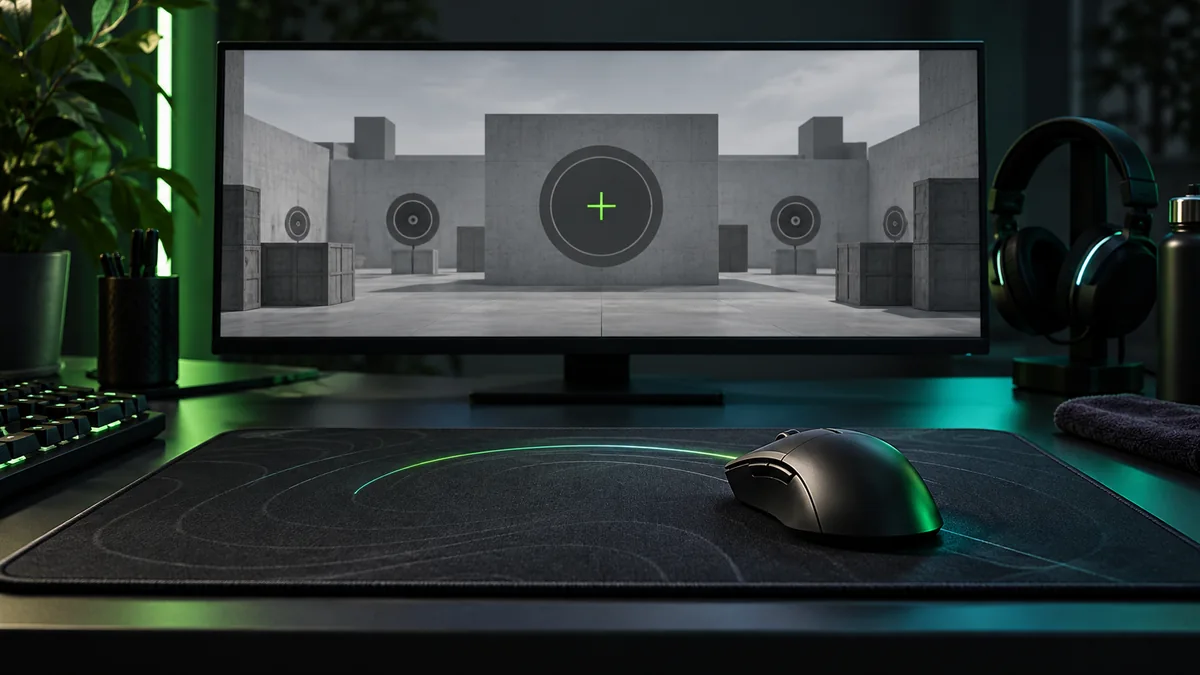
Build and test your crosshair
- Open Settings → Crosshair/Scopes and save your current share code or a screenshot.
- Start from Valve's own example for the new units in the 23 September notes: thickness 1, length 8, gap 4. Use a static style, no center dot, a color that contrasts with the maps you play and an outline if the lines disappear.
- To copy another player's crosshair, paste the whole share code and check that the client accepts it. If an older code fails, rebuild the crosshair by eye from a screenshot.
- Test it against a distant head, a bright wall, a dark doorway and a busy background.
A static crosshair gives a fixed reference. A dynamic one shows when you are still moving or inaccurate, which helps while you learn to stop before shooting. Neither makes a moving rifle shot accurate.
Compare sensitivity in the right units
eDPI = mouse DPI × in-game sensitivity. 400 × 2.0, 800 × 1.0 and 1,600 × 0.5 all equal 800 eDPI. Use it to compare settings inside CS2 with the same input options; it does not convert between games or scoped views.
800 DPI × 1.0 is an easy starting point. To measure cm/360, mark the mouse's position, aim at a landmark, turn a full circle back to it and measure the distance the mouse travelled. Repeat slowly without lifting the mouse.
Leave room for normal clears and for turning away from a flash. If necessary turns keep running off the pad, raise sensitivity slightly or clear more desk space. If small corrections overshoot, check grip tension and speed first, then try a small reduction.
Run a comparison you can repeat
At one distance, make 20 small corrections to stationary targets and 10 comfortable turns to targets on either side. Record overshoots, undershoots and moments you had to lift the mouse. Repeat on another day; one fast run on familiar bots can hide sloppy movement.
Example: 800 DPI × 1.0 = 800 eDPI. Cutting sensitivity by 5% gives 0.95 and 760 eDPI. Keep the new value for several sessions before you judge it.
What to borrow from a pro
Borrow a shape or a testing idea, not a whole desk setup. Public codes go out of date, players change settings between events, and a tiny crosshair that suits their monitor may vanish on yours. A crosshair code tells you nothing about DPI or sensitivity.
The mouse setup guide covers input options. Once visibility and comfort are settled, practice stopping before shots and controlled sprays; a clear crosshair cannot fix aiming at the floor before contact.