
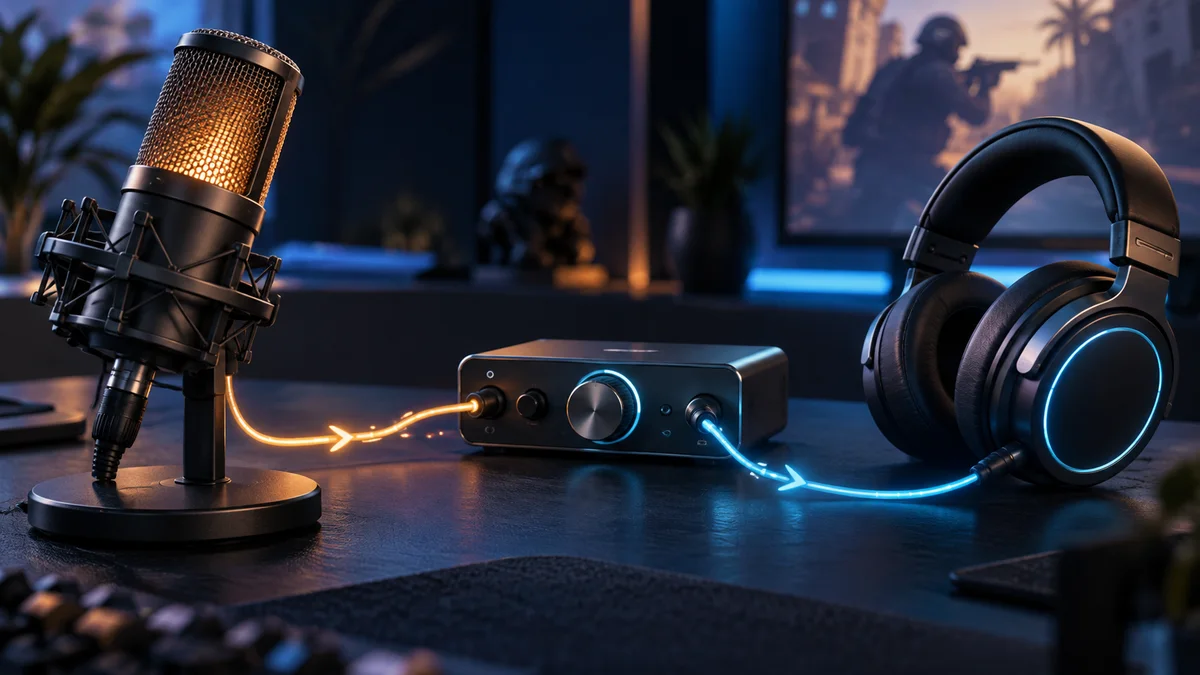
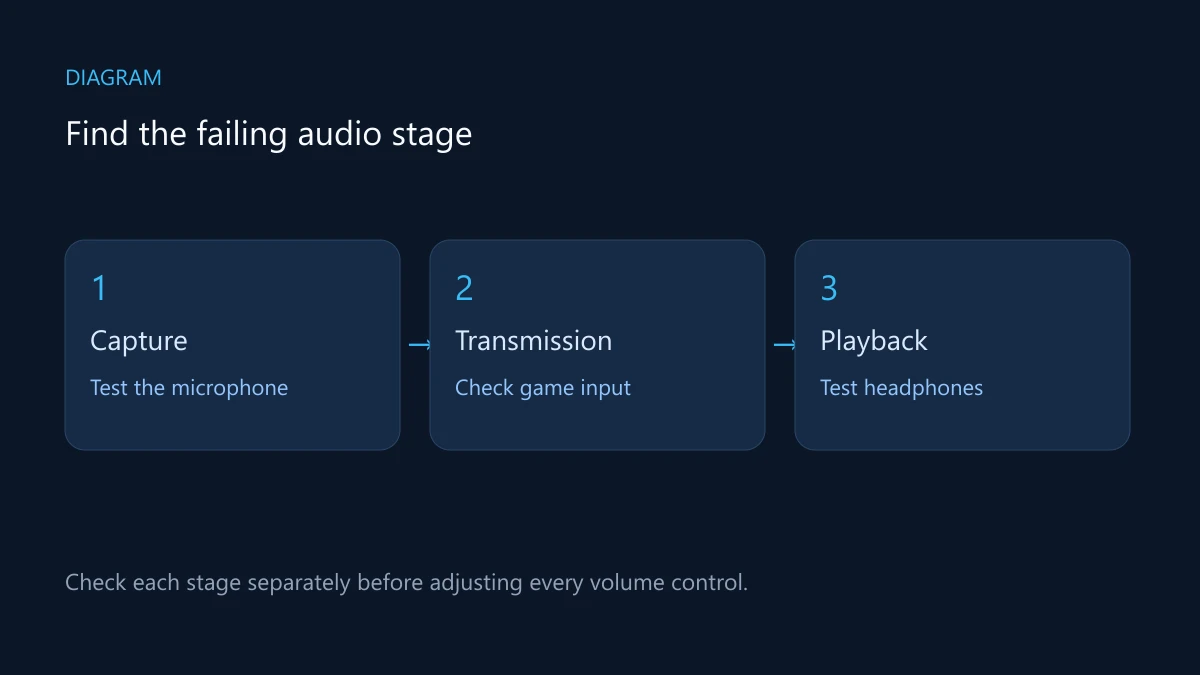
If nobody hears you in CS2, first prove that the microphone records cleanly in Windows, then test transmission to one teammate. Raising every slider can't tell a muted mic, the wrong input, a broken voice key and a listener who muted you apart. If your mic works but enemy direction is unclear, go to the playback checks: that is a different signal path.
1. Get a clean microphone recording
Check the headset's mute switch and cable. For a USB mic, Valve's microphone troubleshooting suggests swapping a front port for a rear one and bypassing any USB hub, and getting drivers from the device maker rather than a random installer. Valve's general approach is to work out whether the problem is hardware, the operating system or the game.
On Windows 11, follow Microsoft's input test: Settings → System → Sound → Input, select the microphone, then Start test. Speak normally, stop and listen back. Under Privacy & security → Microphone, check microphone access and access for desktop apps; a desktop game doesn't have to appear as its own Store-app switch.
Select the device you mean to use, not the first mic on the list; webcams, controllers and old headset profiles add inputs. If the recording is silent, stay at this stage: no CS2 key binding can fix an input that Windows isn't recording.
If the recording crackles, check the cable and connection; Valve also suggests keeping the mic about an inch from your mouth rather than touching your lips. If it's quiet, raise the input level in the operating system and repeat the same sentence at the same distance. There is no universal gain percentage. Add noise suppression one feature at a time and listen for clipped consonants.
2. Test the game's sending path
Restart CS2 after fixing a device problem. Valve's guide says to check the voice transmission type and, for push-to-talk, that the key is bound. Pick the right input in CS2's audio settings where offered, bind a free, comfortable key for voice, and hold it during the test if push-to-talk is on.
Valve also notes that the server controls whether your mic works at all, and that the mic doesn't work in Spectator mode. Test in a private session or with a willing teammate: send one normal sentence and note whether the game shows voice activity and whether they hear it. Don't test by shouting into a public match, and keep headphone volume moderate so it doesn't feed back into the mic.
If Windows records but the game shows no activity, recheck the input, transmission mode and key. If activity shows but one person hears nothing, check their volume and mute status, then try a second listener or another server. The voice icon confirms that you are sending, not that everyone receives it.
Valve's guide also has a test in Steam's Friends & Chat → settings (gear icon) → Voice → Start Microphone Test. If it works there but not in the game, Valve says the game is probably switching the mic input at launch, so recheck the device CS2 is using. If the problem starts only after reconnecting a headset, select the device again before changing gain.
3. Diagnose broken speech without rebuilding the setup
| Symptom | Next test | What it isolates |
|---|---|---|
| Silent Windows sample | Mute, input device, connection and permission. | Capture before the game. |
| Clean sample, no game activity | Game input, voice mode and key. | The game's sending path. |
| Only one listener hears nothing | Their mute and volume, then a second listener. | The receiving side or the session. |
| Speech breaks in every app | Same device on a direct port, processing off for comparison. | A shared device or software problem. |
| Breaks match network warnings | Repeat on an idle wired connection. | A possible transmission problem. |
Echo is a separate symptom. Valve links feedback to loud speakers near the mic, so compare with headphones and turn off self-monitoring for the test. If your voice comes back with a delay, a listener's mic may be picking up their speakers. If only your own monitoring is loud, adjust that locally instead of everyone's voice volume.
4. Check directional playback at a comfortable level
Confirm that CS2 outputs to the headphones you are wearing, test the left and right channels with a known sample and check that the headset isn't on backwards. For a baseline, use one spatial-processing path and turn off stacked surround, equaliser or enhancement presets; then add one effect back at a time if a controlled comparison supports it.
In a practice session, have a helper make the same sound at a known spot; keep your view fixed, call the direction and check it. Repeat front, side and rear positions, and different floors where relevant. A louder or sharper sound alone does not make the direction easier to call.
Keep master volume comfortable during explosions and gunfire, then adjust distracting music and teammate voices separately. Don't cover uncertainty by maxing every slider, and keep the cues you actually use rather than copying someone else's percentages.
Not every enemy action makes a sound. Valve's 22 September 2026 update made un-scoping a sniper rifle silent, so a missing unscope sound doesn't mean an angle is empty. Combine sound with timing, teammate calls and what you can see.
What to keep after the fix
Save the input and output names, the voice key and any processing you kept. Repeat a short recording and one in-game sentence after an OS update or a device change. For a fault that keeps coming back, report the stage that fails and the test that reproduces it; "audio broken" gives support far less to work with. Keep the setup once a clean recording, delivery to a listener and repeatable direction calls all check out.