
To watch a CS2 demo, download your match replay in CS2 and play it from the Watch menu, or put a downloaded .dem file in the game\csgo folder and type playdemo plus the file name in the console. A demo is replay data, not a video: renaming a .dem file to .mp4 does nothing. To share a clip, record the playback with Steam Game Recording and export an MP4.
Watch a replay from your match history
- Open CS2's Watch menu, find the match and download its replay.
- Wait for the download, then start playback.
- Jump to a round you remember. Use pause, speed and the timeline to move around.
- Note the map, match date and round numbers you want to revisit.
Two playback features help. Since 23 May 2024 the demo timeline marks kills and deaths, and a highlight mode shows only the active player's kills and deaths (Valve notes). Since 5 November 2025 TrueView re-runs the observed player's client-side prediction, so playback matches what that player saw much more closely than the old server view. TrueView switches off by default when your game version differs from the one that recorded the demo (Introducing TrueView).
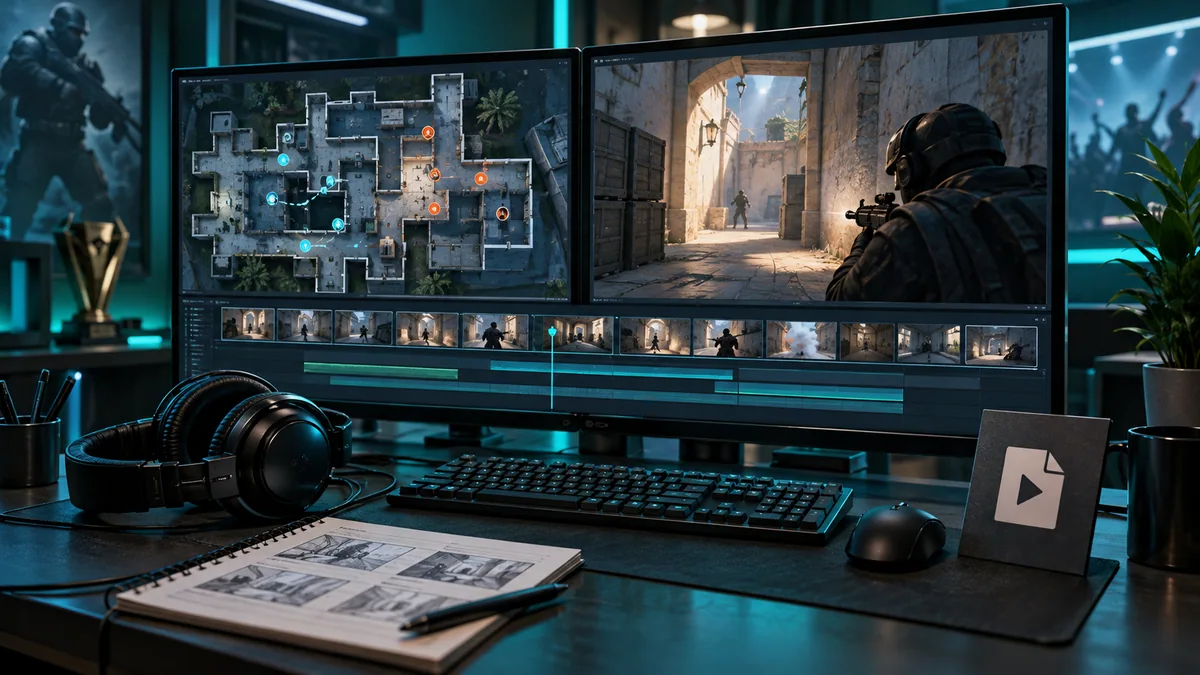
Open a downloaded .dem file in CS2
FACEIT's instructions cover demos from its matches:
- Open the match room (the match must be from the last 30 days) and click Watch Demo to download the file.
- The demo is compressed. Extract it with WinRAR or another archive tool.
- Extract it into CS2's
game\csgofolder, for exampleC:\Program Files (x86)\Steam\steamapps\common\Counter-Strike Global Offensive\game\csgo. This is not the old CS:GO demo folder. - Rename the file to something short, such as
review.dem. - Open the console with its key (assign one in the controls settings if you have none), type
playdemo reviewand press Enter.
If the command cannot find the file, check the exact name and folder before you change anything else. If one demo fails but a fresh one plays, the problem is that file.
Review what you knew before the outcome
Pause just before contact. List what you knew: teammates' positions, enemies actually seen or called, remaining utility, the clock and the objective. Write the decision you would make now, then watch the result and another viewpoint.
Example: you die rotating from B after an A flash. Before contact you knew about utility at A, but nobody had seen the bomb and your partner had no B information. The useful fix is “call the cue and ask for confirmation before leaving.” “I should have known three were B” is hindsight unless those enemies were seen or called.
X-ray helps explain routes afterwards; do not use it to invent information you had in the round. Review a close win as well as a loss: a lucky dry re-peek can still be the habit to remove.
Export a highlight with Steam Game Recording
Steam Support describes the recorder. Turn it on in Steam → Settings → Game Recording and choose Record in Background or Record on Demand. CS2 is one of the games that adds its own markers to the recording timeline. For an old demo, record the playback on screen; you are capturing the replay, not converting the file.
- Make a short test recording and check picture and audio.
- Play the moment at normal speed from the viewpoint you want, starting early enough for context.
- Open the timeline, press Clip and drag the start and end points.
- Save the clip, then choose Export Video File to get an MP4.
- Open the MP4 outside the game and check the first frame, last frame, audio and length.
Background recordings are temporary: once the disk space you set aside is full, they are overwritten, so save the clip before you keep playing. Steam uses NVIDIA or AMD graphics cards to keep the cost low; on other systems the CPU does the work and you may notice a performance hit.
End with one change you can test
Write an action and a future check: “wait for the flash call before peeking window; review the next three window fights.” Use utility practice for timing, economy review for buys and the practice routine to schedule the drill.